
How to submit a modified assurance report

Here is a step-by-step guide to access the secure upload form to submit your modified audit or assurance report to the XRB.
First ensure you have a user account for this website
- If you already have a user account and know your password, go to Step 1.
- If you have a user account, but you’ve forgotten your password, reset it in Step 2 below.
- If you don’t currently have a user account, go to Step 3.
- If you are unsure if you have a user account in your name with your current email address, Contact us and request a check.
1. Sign-in
If you're not already signed-in, Sign In to your XRB User account at the top of the screen above the Search box.
If you’re a returning visitor, your email and password will display.
To sign-in, click the green LOG IN button.
Once you’ve signed-in, go straight to Step 4.
2. Need to reset your password?
- Click the I’ve lost my password link (back in Step 1 above).
- Enter your email address as instructed to receive a password reset link. This email address MUST be the same as the email address in your User account, i.e. the same email address from which you receive our online newsletters.
- When you receive the password reset link via email, follow the instructions to change your password.
If you do not immediately receive the reset link, check your Junk or Spam email folder.
If the system does not recognise your email address, follow the instructions in Step 3 below to set up a new user account.
3. Need to set up a user account?
If you don’t have a user account, you need to set one up as follows.
- Select Sign Up at the top of your screen above the Search box.
- Complete the Sign-Up form that displays with your personal details along with your online newsletter preferences and interests.
- When complete, select the green Sign Up button at the base of the form. You now have a User profile!
NOTE: Before you can submit your first report, we first need to approve your user account. This is not immediate, but we try to do this on the same day.
You can access your user account at any time, to edit your profile or change your password and preferences.
4. Modify your user account details
- Now you’ve signed-in, the dialogue at the top of your screen looks like this:
- Select Your Profile.
- Once that opens, select Edit Profile from Profile Options at the top of the right-hand side bar.
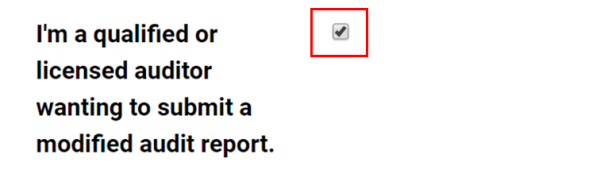
- Your profile is now editable. Ensure the checkbox beside “I’m a qualified or licensed auditor…” is ticked. This is ensures you can now access the secure upload form to submit your report.
- Save your changes
5. Submit your modified audit report
- From the top menu, select Assurance Standards and navigate to the Modified Audit Reports page:
- On the Modified Audit Reports page, the secure upload form displays at the base of the page.
- NOTE: You can view the upload form only if you have first followed Step 1 and then Step 4 above.
- Answer all questions on the form.
- Choose your file and upload the financial statements.
- Click the Submit button.
- Once you’ve submitted your report, you will receive an acknowledgement sent to the email address in your User Account email,.
- Follow this same procedure for each modified audit report you need to submit.
- You’re done!